Managing TimeOFF Requests
This page explains how an approver or manager reviews and processes TimeOFF requests submitted by employees.
Approving or Declining Requests
You do not need to log in to any new system to approve or decline a TimeOFF request. Requests will arrive directly in your inbox, ready for review. The process is as simple as clicking the Approve or Decline button in the email. Before making a decision, please check whether the employee has enough leave days available. With further integration, this step can be automated.
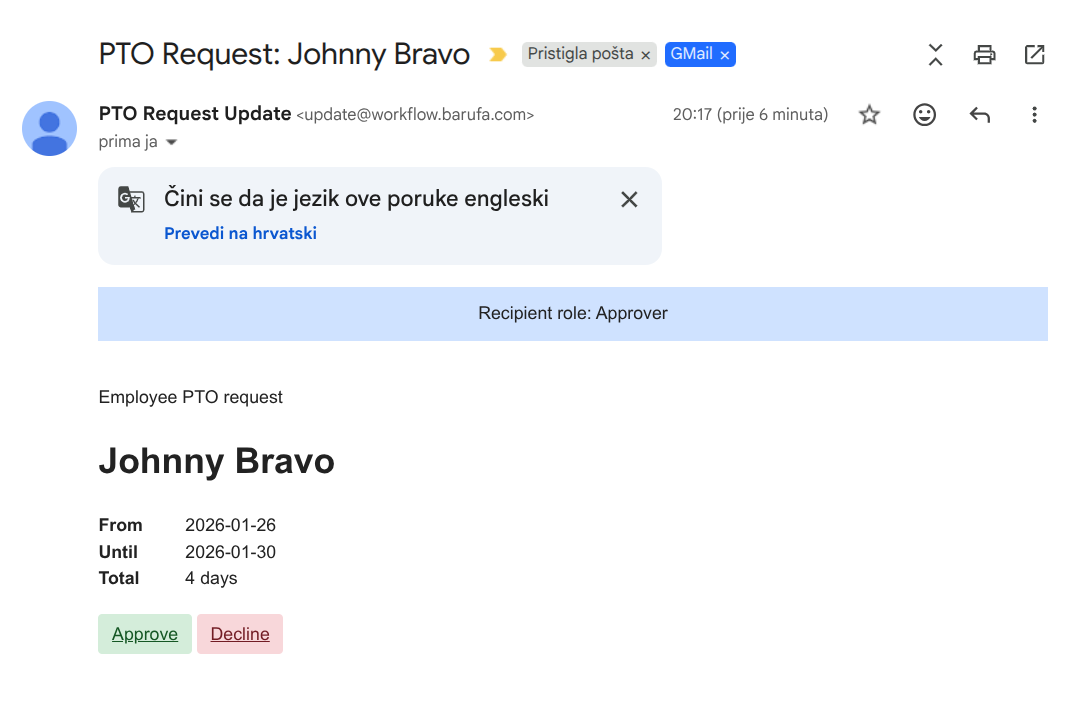
Once you select Approve or Decline, your part is done, and you can continue with your daily work.
Employee Notification
When a TimeOFF request is approved or declined, the employee who submitted the request will be notified of your decision automatically. You do not need to take any further action. You can read more about this in Employee TimeOFF Requests. With further automation, other relevant departments, such as HR or bookkeeping, can also be notified.
Duplicate Actions
If you accidentally click Approve or Decline multiple times for the same request, do not worry. You will see a message indicating that the request has already been processed. Notifications are only sent the first time you take action on a request.